Install and use Brickmoat
Protection starts the moment the plugin is active. This guide shows what to expect after that, screen by screen.
You need: WordPress 6.5 or newer, WooCommerce 8.5 or newer, PHP 7.4 or newer.
Install the plugin
- Download the plugin (version 1.0.0). It is a ZIP file; do not unpack it.
- In WordPress, go to Plugins → Add New → Upload Plugin, choose the ZIP and click Install Now.
- Click Activate.
That is all. WooCommerce must already be active. A new Brickmoat item appears in the admin menu, and your checkout is protected from this moment.
Two quick choices
The first time you open Brickmoat it asks two things. Neither is required, but both make it fit your store.
- Where to tell you about an attack. One email when an attack starts and one when it ends. Never one per blocked bot.
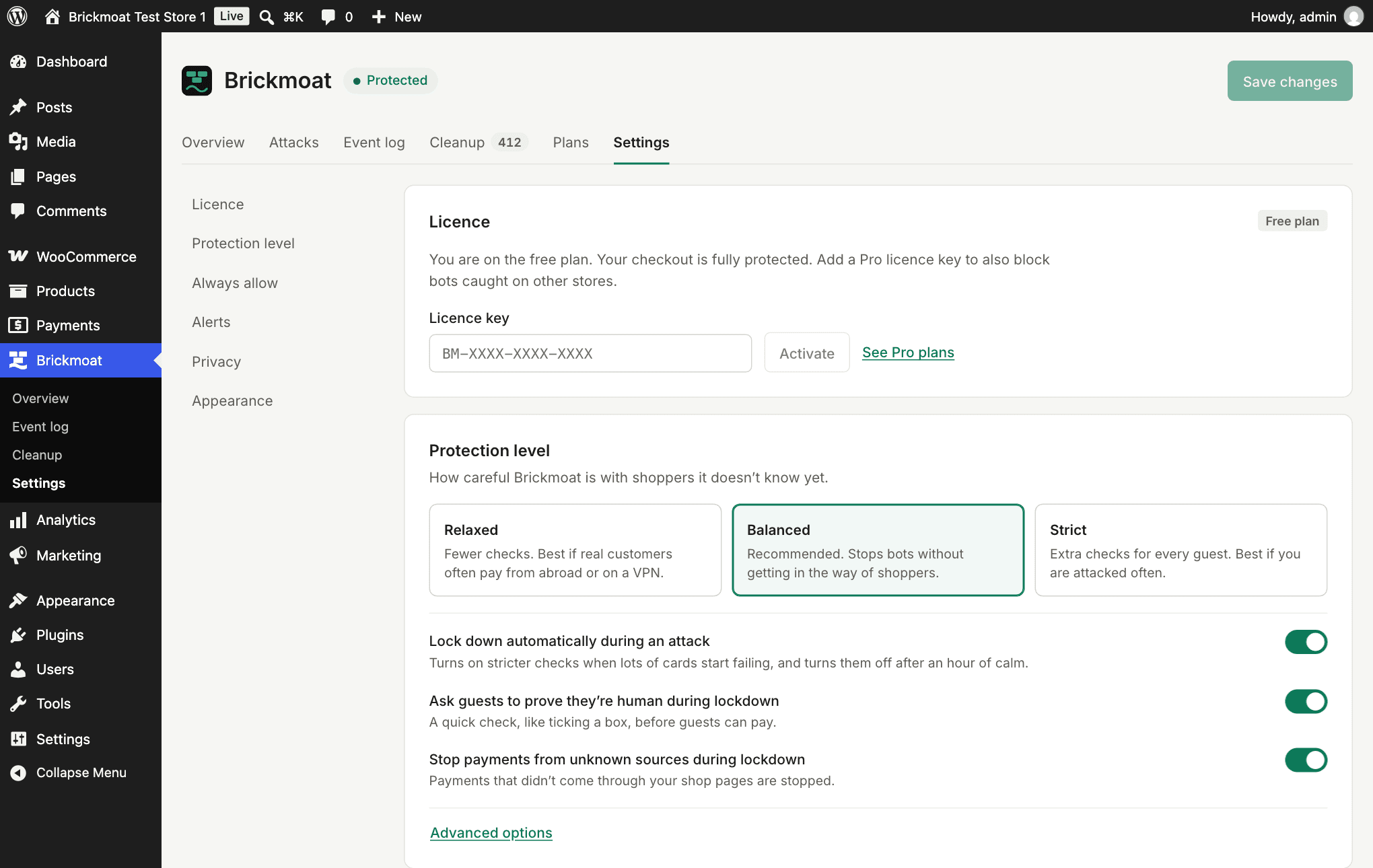
- How careful to be. Balanced suits most stores. Choose Relaxed if real customers often pay from abroad or on a VPN, and Strict if you are attacked often.
It also lists the ways to pay it found on your store, so you can see that all of them are guarded.
Read the overview
The overview shows the last 24 hours, 7 days or 30 days: how many checkout attempts there were, how many were bots, how many shoppers were asked to prove they are human, and the reasons attempts were stopped. An attack shows as a shaded band on the chart.
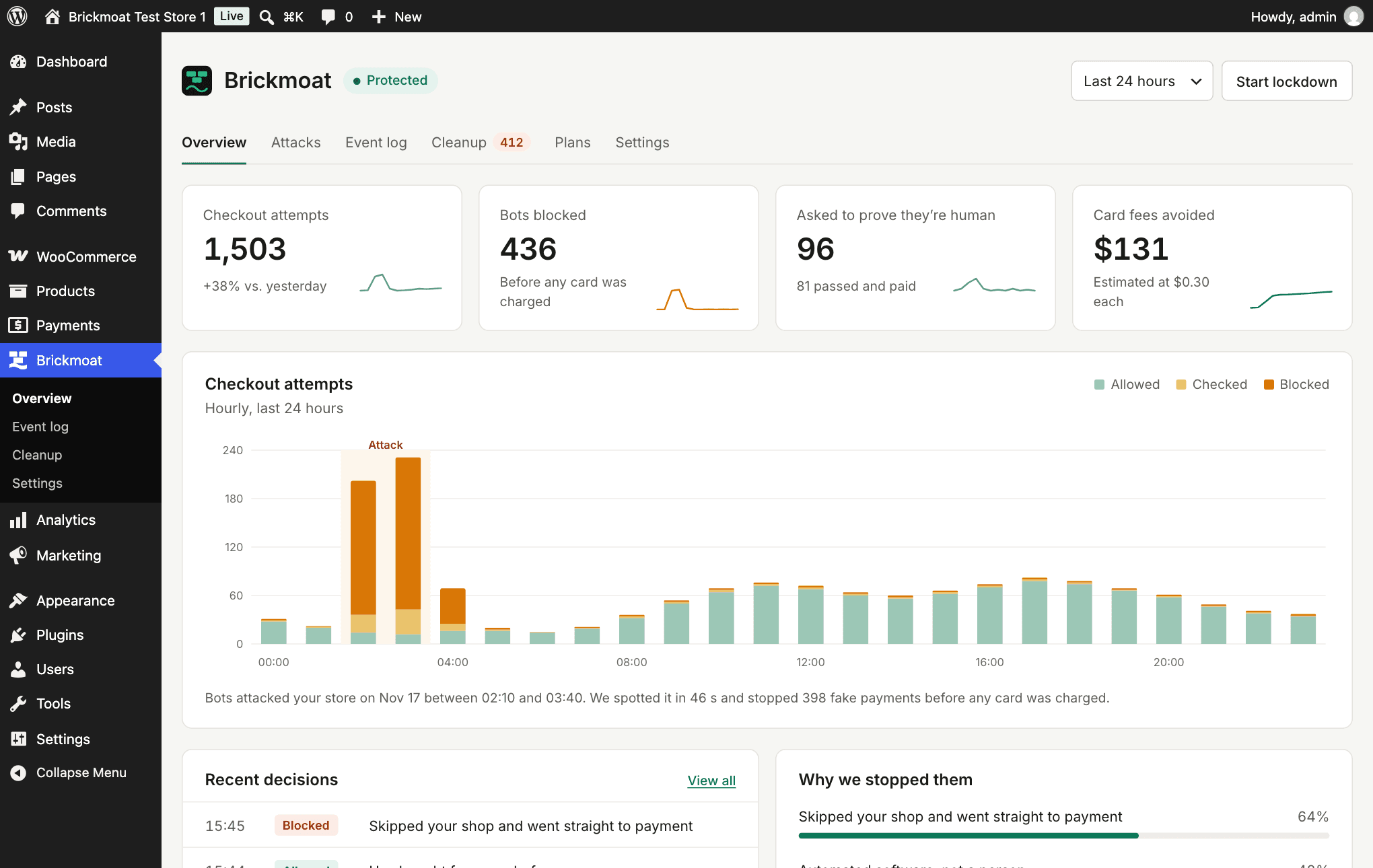
On a quiet store most of this is zeros. That is what you want.
What happens during an attack
When declined cards spike, Brickmoat switches to lockdown by itself and emails you once. You do not need to do anything. While lockdown is on:
- Anyone who skips your shop pages and goes straight to payment is stopped.
- Guest shoppers answer a quick “I’m human” question before paying.
- Anything even a little suspicious is stopped.
- Failed-order emails are paused; you get one summary instead.
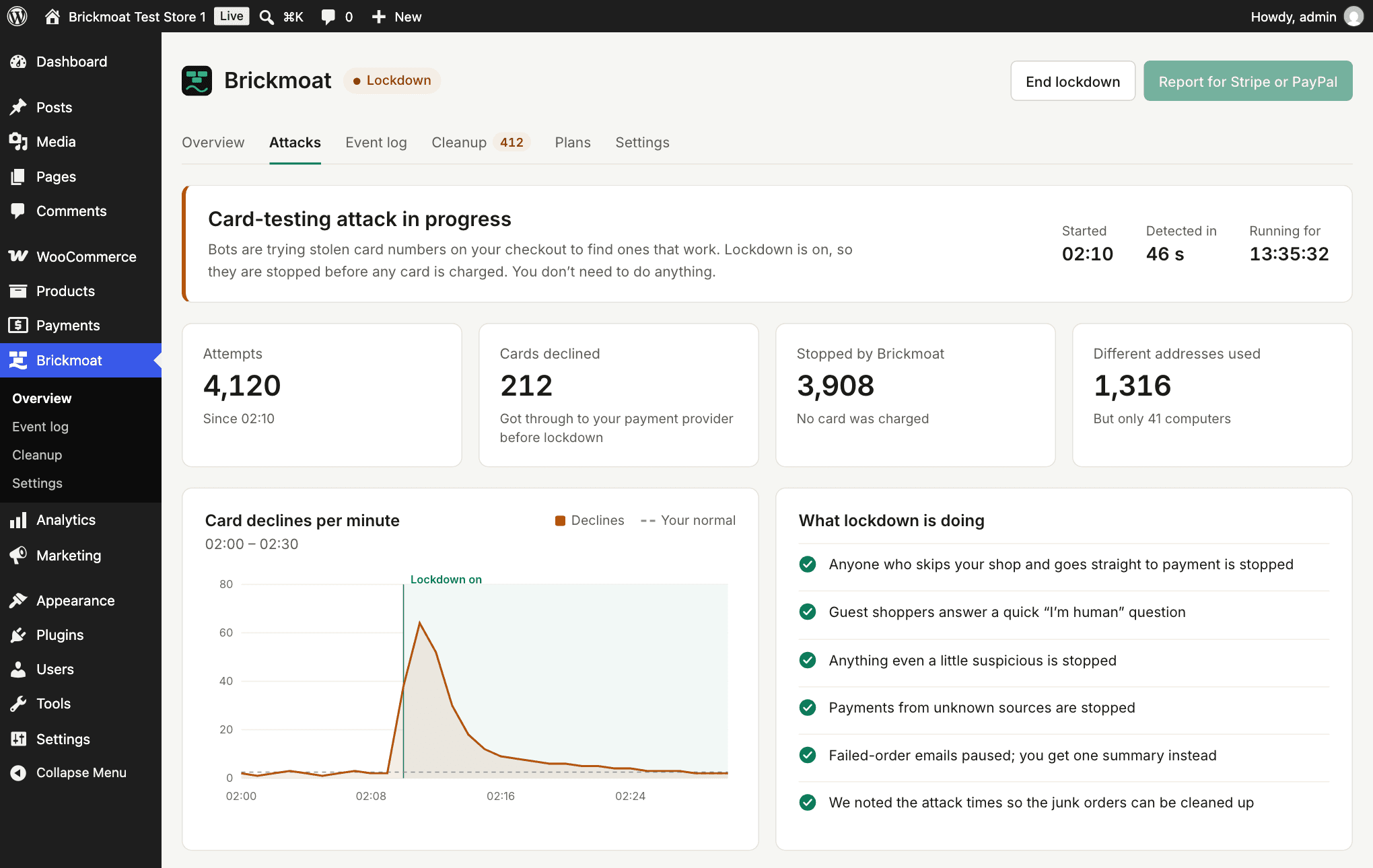
Lockdown ends by itself after 60 quiet minutes. If you are being attacked and see nothing yet, press Start lockdown on the overview; that holds for 24 hours or until you end it. Brickmoat never switches your checkout off: real customers can still buy.
Clean up afterwards
Open Cleanup. It lists the failed and unpaid orders the attack left behind, and how many real orders it will leave alone. Press Move orders to Trash; the work runs in the background, a few orders at a time so your shop stays fast.
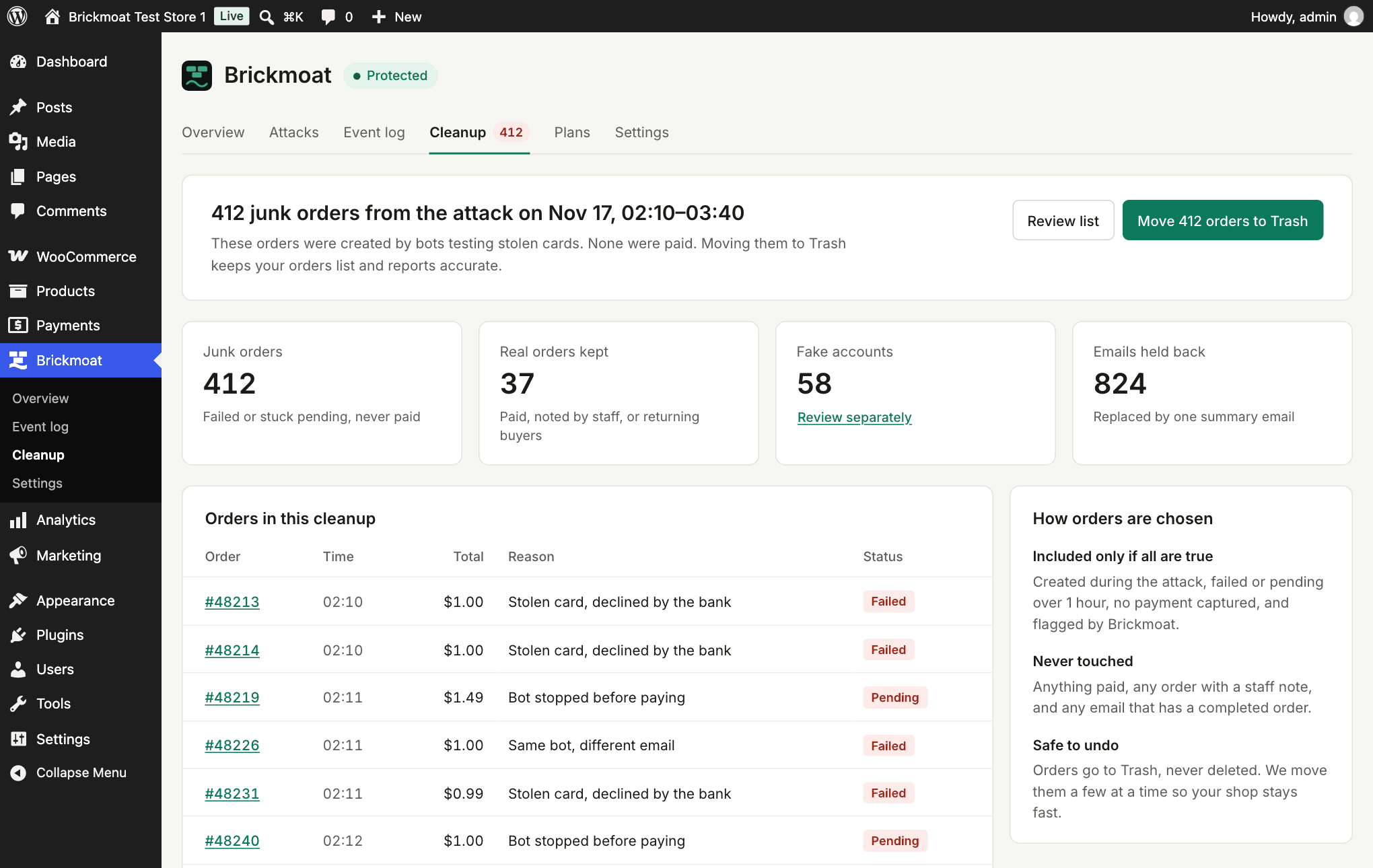
- Never touched: anything paid, any order with a staff note, and any email that has a completed order.
- Safe to undo: orders go to Trash, never deleted. Press Undo, or restore any order from Trash.
Check a single shopper
The Event log lists every checkout attempt with what Brickmoat decided and why, in ordinary words. Select a row to see everything it noticed.
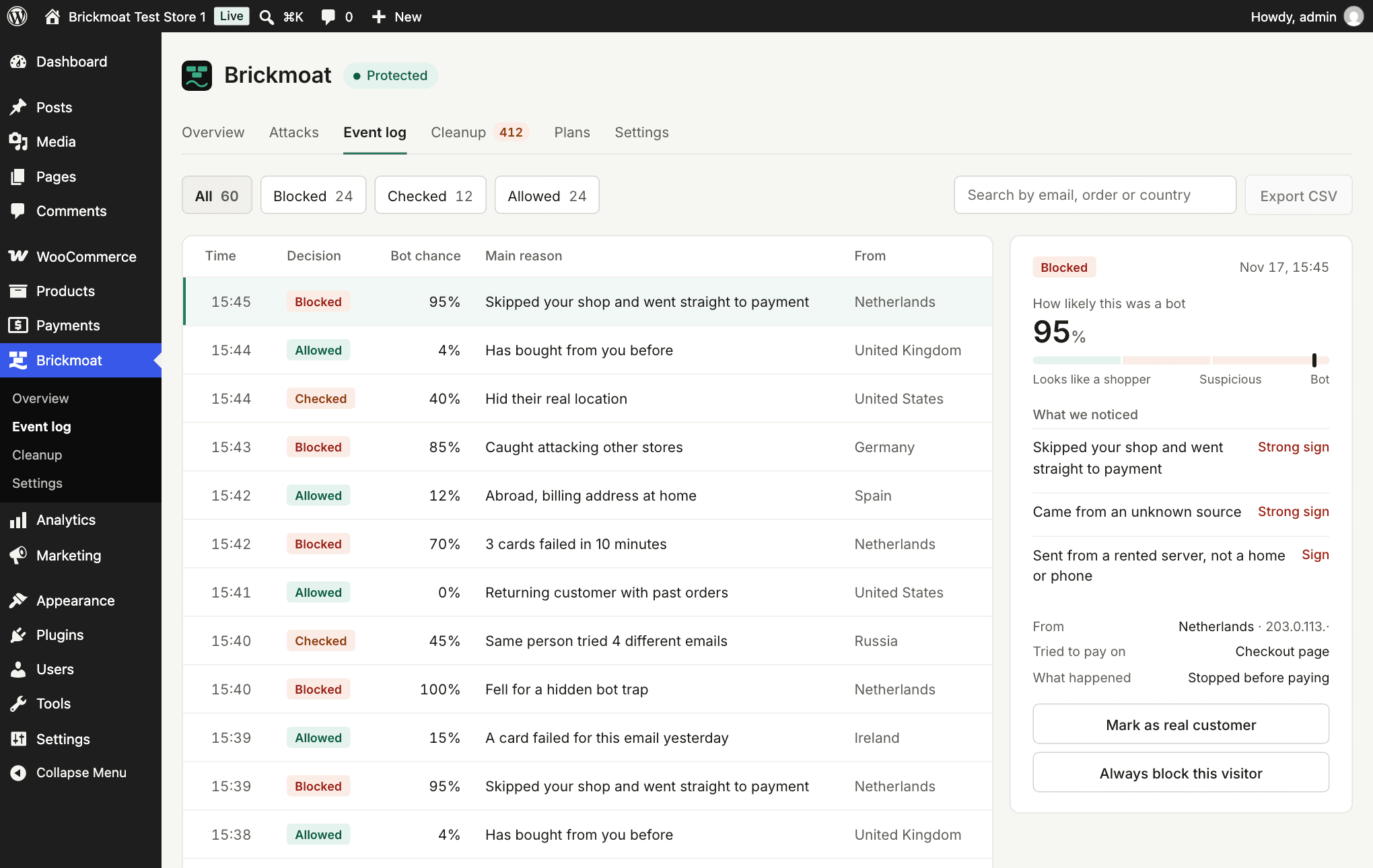
- If a real customer was stopped, choose Mark as real customer. They will not be stopped again.
- If a visitor keeps coming back, choose Always block this visitor. You can undo that in Settings.
Settings worth knowing
- Always allow. Returning customers and your logged-in staff skip the checks by default. Add the email of a wholesale buyer who orders often, or the internet address of your office or warehouse.
- How visitors reach your store. If your site sits behind Cloudflare or another proxy, check under Advanced options that Brickmoat sees your real address. It works this out by itself in most cases.
- Privacy. Settings gives you ready text for your privacy policy, and links to WordPress’s own tools for exporting or erasing a customer’s data.
Switch on Pro
Pro is optional. It is a licence key, not a second plugin. Checkout for Pro opens soon; this is how it will work.
- Choose a plan on the pricing page. Your licence key arrives by email.
- In WordPress, open Brickmoat → Settings → Licence, paste the key and press Activate.
- Within 5 minutes the store downloads the list of bots caught on other stores and starts blocking them.
To add Slack, paste a Slack webhook address under Settings → Alerts. Discord and text messages are set up after you log in here with the email you bought Pro with. After an attack, the Attacks screen has a button that opens a ready-made report for Stripe or PayPal, as a web page and a PDF.
For agencies
An Agency licence covers up to 25 stores. Enter the same key on each client store, then log in to see them all on one screen: which are in lockdown, the last 24 hours of attempts and blocks, and junk orders waiting for cleanup.
- Start or end lockdown, run a cleanup, or change a store’s protection level from the dashboard. The store picks it up within 5 minutes.
- Put your own name, colour and logo on the reports your clients send to their payment provider.
- Move a licence seat from one store to another on the Account page.
Protect your checkout today
Install the free plugin and your checkout is protected straight away. There is nothing to set up and no account to create.
Version 1.0.0, a ZIP you upload in WordPress. Free, no account needed. How to install